

If you have the WordPress Photo Gallery Plug-in installed but want to know how to start using it please read this blog.

How to add an image gallery to your wordpress website
Alternatively you can visit the following website where you can view FAQ’s and watch tutorial videos. It is always worth enhancing your website with attractive images to make it more appealing to your visitors.
Please note: This is a quick guide to using the plugin, not instructions on how to purchase and install it. Please refer to the plug-in website for this.
If you don’t have it installed and would prefer to have us do everything for you instead please purchase the service here.
How to add an image gallery to your wordpress website
- Login to the admin section of your website with your username and password
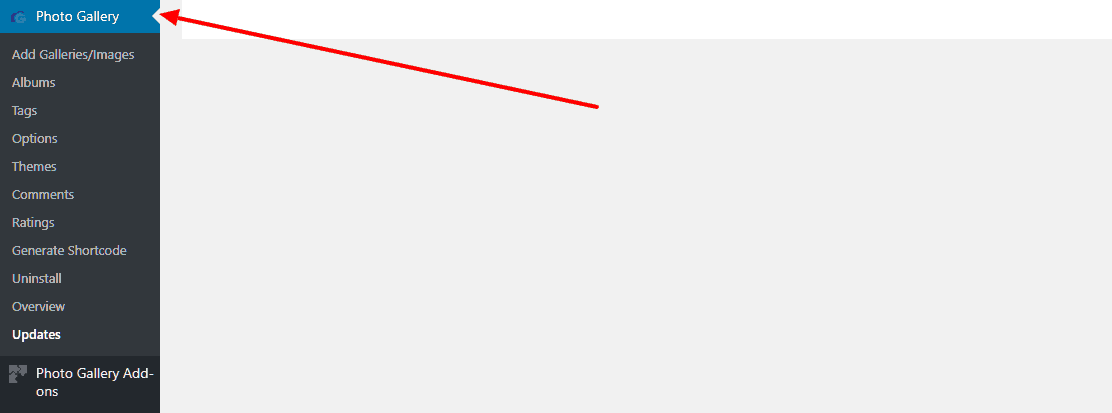
- On the left hand side select PHOTO GALLERY to access the plugin

- Follow instructions on adding/editing images, albums and galleries in the How to add an image gallery to your wordpress website user guide.
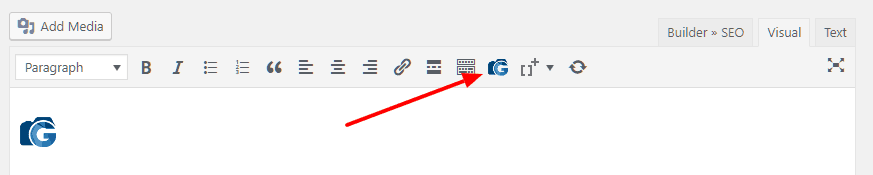
- Once you have uploaded your images and edited the titles and descriptions as required it is time to publish a gallery to one of your pages for your site visitors to view. To do this choose which page you would like to display the gallery and select the GALLEY icon as shown:

- Finally you can tweak the various options influencing the number and size of images displayed per page by double clicking on the gallery image you just placed within the page.
FULL USER GUIDE: How to add an image gallery to your wordpress website user guide.


