Do you want to know how to view your saved passwords in Chrome & Firefox? This post shows you how to retrieve them step by step in case you forgot what your actual password was and always relied on your browser to “remember” it instead.
First you will need to skip to the instructions for your browser – Google Chrome or Firefox (of course, there are other browsers but in this post we just cover these two.)
View Saved Passwords In Google Chrome
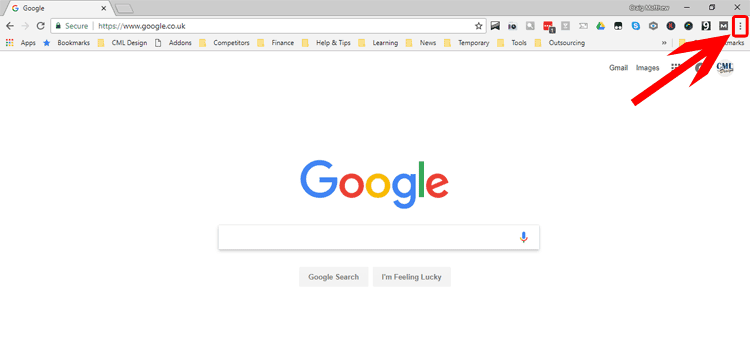
Start by clicking on the 3 dots in the top right hand corner of the browser.
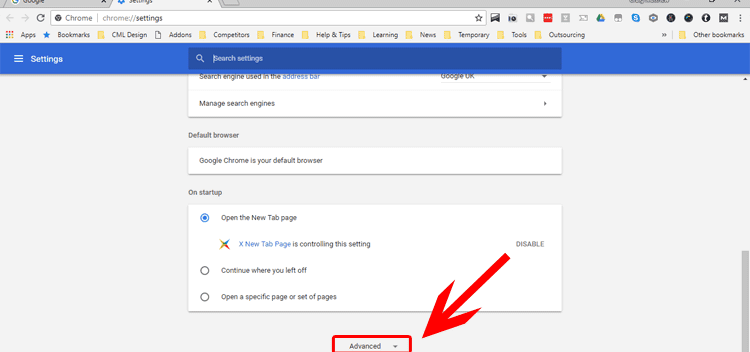
Next, scroll to the bottom of the settings page which loads up and click on the Advanced link to display even more settings including the password management area.
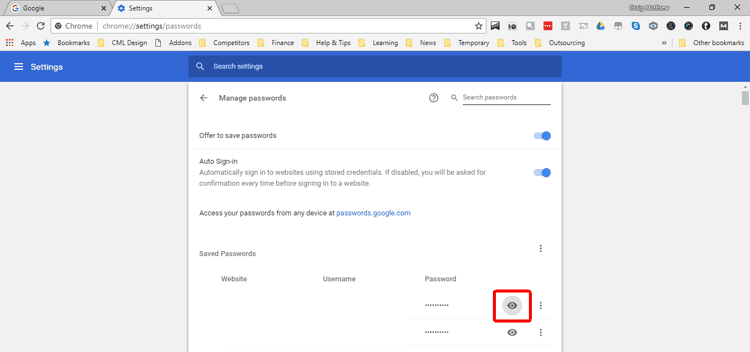
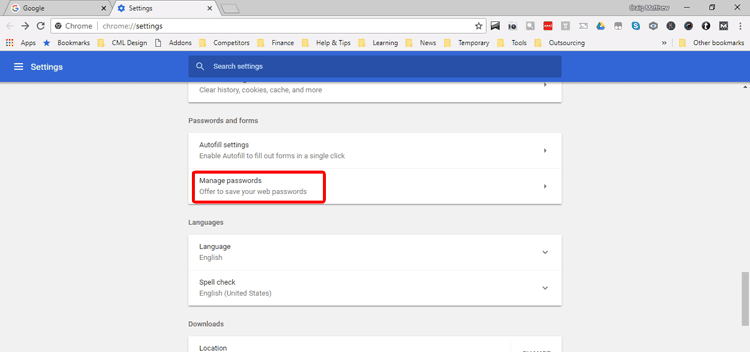
Finally you will see a list of saved passwords and to reveal them click the eye symbol and enter any master password you might have set for the browser.
View Saved Passwords In Firefox
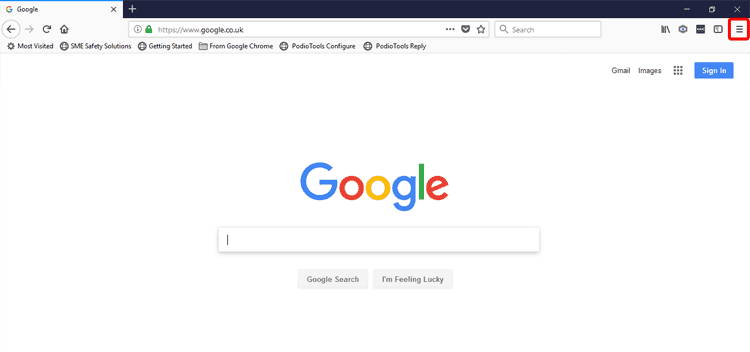
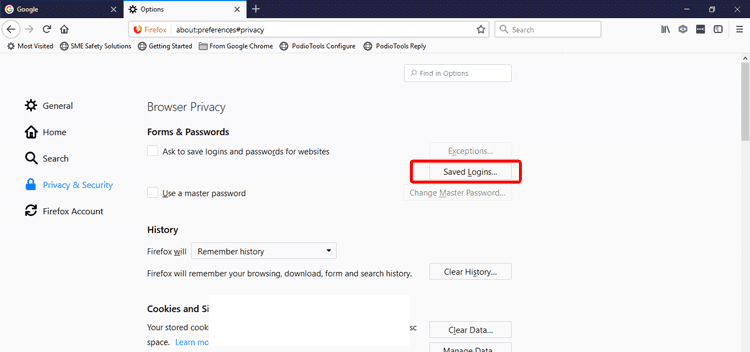
You follow a similar process to reveal saved passwords in Firefox clicking the 3 lines in the top right hand corner to reveal the OPTIONS sub-menu.
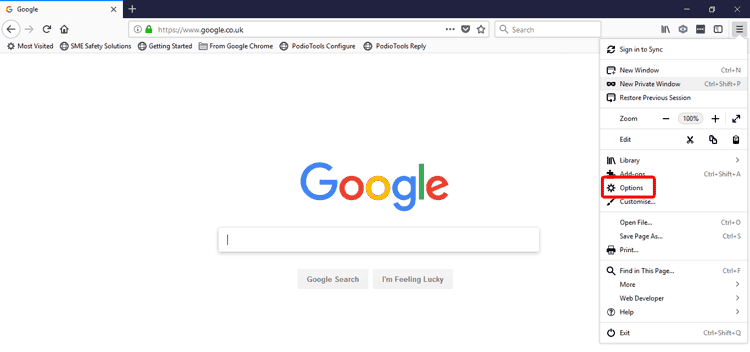
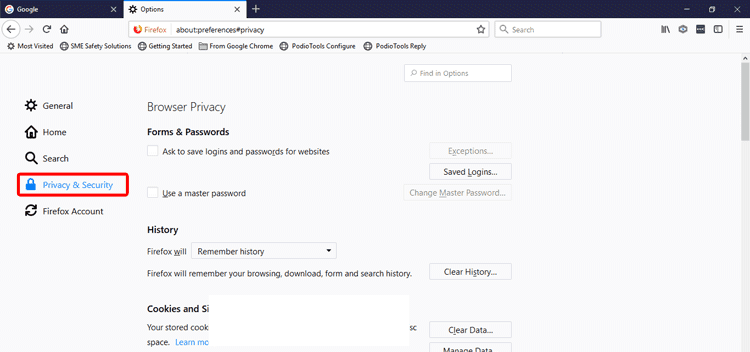
Choose the PRIVACY & SECURITY section on the left hand side followed by SAVED LOGINS which will display your saved passwords for specific sites.